
– Reports provide an overview of the entire business.
– To view a report, click on Reports & Select the desired report.
– Some Reports come with filter options to help analyze the business better.
– Purchase & Sale Report: Shows total purchases, including taxes, purchases with Due amount; and total sales, including taxes, and sales due.
– Tax Reports: Displays Input & Output Taxes.
– Contacts Report (Customers & Suppliers Reports): Shows details of Purchase & Sell with all contacts (Suppliers & Customers) and any Due amount.
– Stock Report: Displays stock details, including remaining stock and total quantity sold for all products.
– For variable products, click on the Green Plus button before the SKU column to get detailed stock reports for each product variation.
– Stock value by Purchase & sales price: In the stock report, get information about current stock value based on purchase price & value based on selling price.
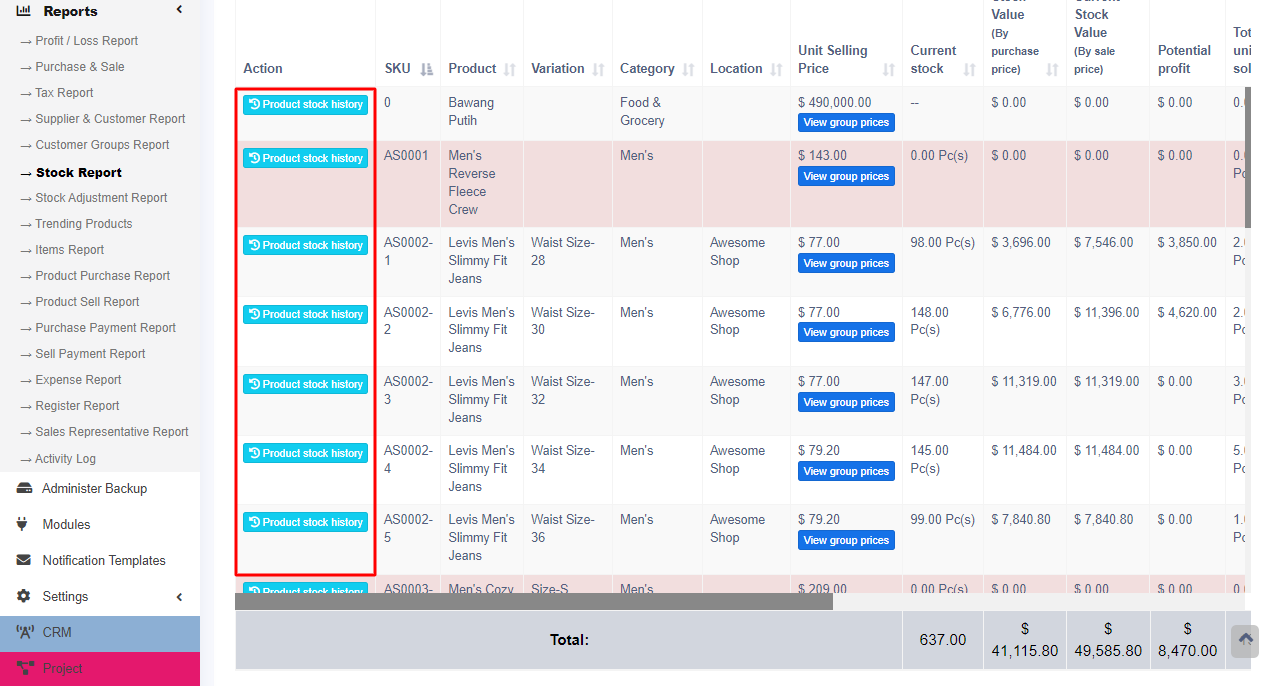
Tracking product stock report with date #
To check the product stock report date wise, use the ‘product stock history ‘link in the stock report.
Trending Products Report:
– This report helps determine the demand for products.
– Apply various filters to refine the product data.
– Select a Business Location to view trends specific to that location.
– Filter by Product Category, Sub-Category, Brands, Units, and Date Range.
– Set the “No. of products” parameter to view the top products based on quantity sold, such as Top 5 or Top 10.
Expense Report:
– Analyze expenses for business locations and expense categories.
– Gain insights into expenditure patterns.
Register Report:
– View details of all cash registers.
– Filter registers by User and/or Status (Open or Closed).
Sales Representative Report:
– View sales and expense details for sales representatives.
– Filter data by User, Business Location, and Date Range.
Grouping Invoices in Product Sell Report:
– In the Product Sell Report, invoices are grouped based on specific criteria for user convenience.
– Navigate to Reports > Product Sell Report and click the Grouped tab.
– Invoices are grouped based on criteria such as date and product name.
– For example, all Butter Cookies sold today will be shown in one row, while Butter Cookies sold yesterday will be shown in another row.